


Unlock the full power of the financial markets from the palm of your hand. The IC Markets cTrader Android app gives you the tools and speed you need to trade with confidence, wherever you are. Forget being tied to your desk. This guide provides everything you need to know about the cTrader Android app download, installation, and setup. We will walk you through its powerful features, helping you transform your phone into a professional-grade trading terminal. Seize market opportunities the moment they arise. Let’s get started.
- What is the IC Markets cTrader Platform?
- Why Choose the cTrader App for Your Android Device?
- Core Features of the cTrader Mobile App
- Advanced Charting and Technical Analysis Tools
- QuickTrade Mode for Fast Order Execution
- Comprehensive Order Management Capabilities
- System Requirements for Android Users
- Step-by-Step Guide: IC Markets cTrader App Download
- Downloading Directly from the Google Play Store
- Using the Official IC Markets Website Link
- How to Install and Set Up the cTrader App
- Configuring Your Live and Demo Trading Accounts
- Navigating the Main Interface: A User’s Guide
- Placing Your First Trade on the cTrader Android App
- Managing Your Funds: Deposits & Withdrawals on Mobile
- Security Measures: Keeping Your Trading Account Safe
- IC Markets cTrader vs. MetaTrader (MT4/MT5) on Android
- Tips for an Optimal Mobile Trading Experience
- Troubleshooting Common Download and Installation Issues
- Frequently Asked Questions
What is the IC Markets cTrader Platform?
The IC Markets cTrader platform is a premium trading solution designed for discerning traders who demand a superior trading environment. It stands apart by offering a clean, intuitive interface combined with powerful, institutional-grade features. At its core, cTrader is built to provide true ECN (Electronic Communication Network) connectivity. This means you get direct access to deep liquidity and lightning-fast execution speeds without dealing desk intervention. It is the platform of choice for traders who prioritize transparency, advanced charting, and sophisticated order management tools. When you use cTrader, you are using a platform engineered for peak performance.
Why Choose the cTrader App for Your Android Device?
You need a mobile platform that doesn’t compromise on power or performance. The IC Markets cTrader app is not a scaled-down version of the desktop software; it’s a fully-featured trading powerhouse built for your Android device. It delivers a seamless and fluid user experience, allowing you to react to market movements with precision and speed.
Choose the cTrader phone app for:
- Uncompromised Execution Speed: Experience the same rapid trade execution you get on desktop, crucial for scalping and high-frequency trading.
- Intuitive and Modern Interface: Navigate complex markets with ease thanks to a user-friendly design that puts essential tools at your fingertips.
- Full Account Synchronization: Your watchlists, workspaces, and account settings sync perfectly between your phone and your desktop platform.
- Direct Market Access (ECN): Trade in a transparent environment with tight spreads and deep liquidity, directly from your mobile.
Core Features of the cTrader Mobile App
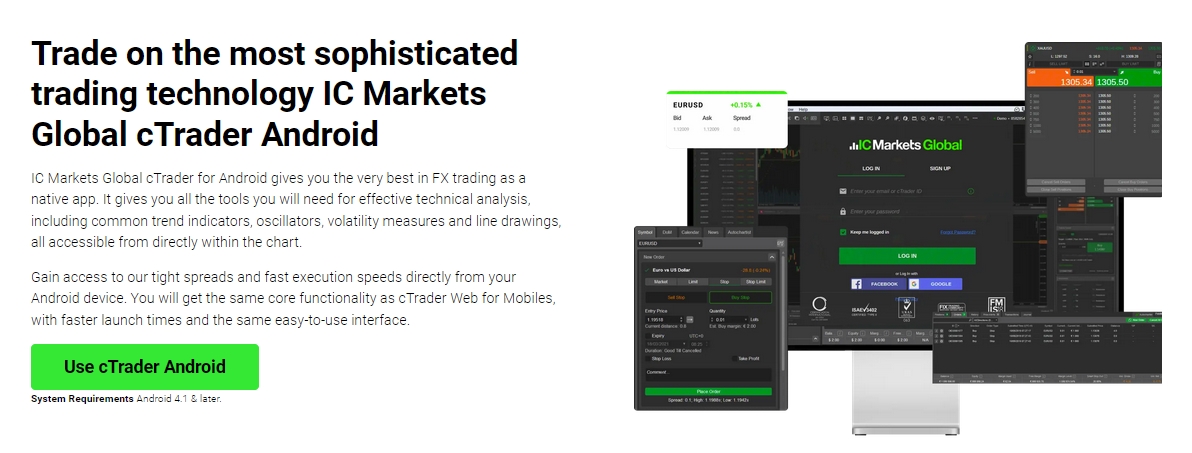
The IC Markets cTrader app for Android is packed with an impressive suite of tools designed to enhance your trading. It provides a complete trading experience, allowing you to analyze the markets, execute orders, and manage your account with just a few taps. Every feature is optimized for a mobile-first experience, ensuring you have total control without feeling overwhelmed. From in-depth charting to one-tap execution, the app provides everything a serious trader demands.
Advanced Charting and Technical Analysis Tools
Conduct detailed technical analysis directly on your phone. The cTrader app offers a fluid and responsive charting experience that rivals many desktop platforms. You gain access to a full suite of analytical tools to make informed trading decisions.
- Multiple Chart Types: Switch instantly between Candlesticks, Bar Charts, Line Charts, and Dots Charts.
- Variety of Timeframes: Analyze price action across 26 different timeframes, from one minute (M1) to one month (MN).
- Over 50 Technical Indicators: Apply popular indicators like Moving Averages, Bollinger Bands, MACD, RSI, and Stochastic Oscillator.
- Drawing Tools: Sketch trend lines, support and resistance levels, and Fibonacci retracements with precision.
QuickTrade Mode for Fast Order Execution
When markets move quickly, every second counts. QuickTrade Mode is cTrader’s solution for high-speed, one-tap trading. This feature allows you to execute market orders with a single or double tap directly from the top of your chart. It is perfect for scalpers and news traders who need to enter or exit positions instantly. You can fully configure QuickTrade settings, including default volume and whether to use a single or double tap, giving you a customized and ultra-fast trading experience.
Comprehensive Order Management Capabilities
The cTrader Android app provides you with complete control over your market exposure. You can place a wide range of advanced order types to execute your trading strategy with precision. This flexibility ensures you can manage risk and enter the market on your terms, even when you’re away from your computer. Available order types include:
- Market Orders: Execute trades instantly at the best available market price.
- Limit Orders: Set a specific price to buy or sell, ensuring you don’t pay more or sell for less than you want.
- Stop Orders: Place an order to buy or sell once the price reaches a certain level, often used for breakouts.
- Stop Loss & Take Profit: Easily attach these crucial risk management orders to any position or pending order.
System Requirements for Android Users
To ensure a smooth and responsive trading experience, your device should meet certain minimum specifications. While the app is highly optimized, using a modern device will provide the best performance, especially when analyzing complex charts. Here are the recommended system requirements for the cTrader Android app download.
| Specification | Minimum Requirement |
|---|---|
| Operating System | Android 6.0 (Marshmallow) or higher |
| Internet Connection | Stable Wi-Fi or 4G/5G mobile data |
| Screen Resolution | 480×800 or higher |
| Storage Space | At least 100 MB of free space |
Step-by-Step Guide: IC Markets cTrader App Download
Getting the official IC Markets cTrader application on your Android device is a safe and straightforward process. You have two primary methods to ensure you download the correct and most up-to-date version. We recommend using one of these official channels to protect your account’s security. Follow the simple steps outlined below to begin your mobile trading journey.

Downloading Directly from the Google Play Store
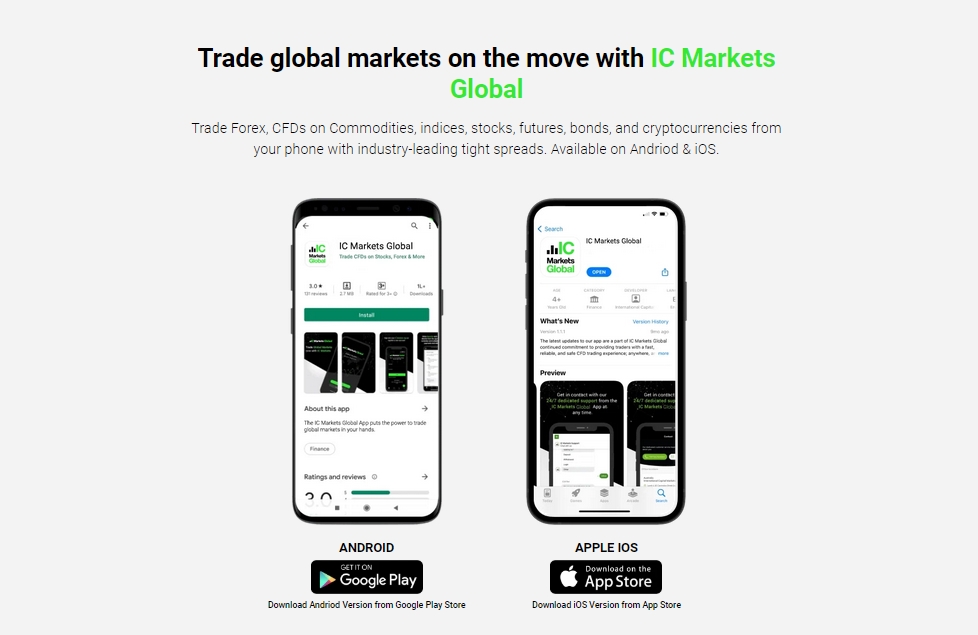
Using the cTrader Google Play store is the most common and recommended method for downloading the app. This ensures you receive automatic updates and a version of the app verified by Google.
- Open the Play Store: Tap the Google Play Store icon on your Android phone.
- Search for the App: Use the search bar at the top and type in “IC Markets cTrader”.
- Verify the Developer: Look for the app published by “Spotware Systems”. This confirms you have the authentic application.
- Tap Install: Press the “Install” button. The app will download and install on your device automatically.
Using the Official IC Markets Website Link
You can also initiate the download directly from the IC Markets website. This method ensures you are always directed to the correct application on the Google Play Store, eliminating any chance of downloading a fraudulent app.
- Visit the IC Markets Website: Open your mobile browser and navigate to the official IC Markets homepage.
- Find Trading Platforms: Go to the section for trading platforms and select “cTrader”.
- Select the Android Version: On the cTrader page, find and tap the “Get it on Google Play” badge.
- Complete Installation: You will be redirected to the app’s official page on the Google Play Store, where you can tap “Install” to complete the process.
How to Install and Set Up the cTrader App
Once the download is complete, the installation process is mostly automatic. Your Android device will install the app, and its icon will appear on your home screen or in your app drawer. The first time you open the app, you will be greeted by a login screen. The app may ask for standard permissions to function correctly, such as access to your network connection. Simply accept these prompts to proceed. You are now ready to connect your trading account and begin exploring the platform.
Configuring Your Live and Demo Trading Accounts
Connecting your accounts is simple. The cTrader platform uses a cTrader ID (cTID) for a unified login experience. This ID links all your demo and live trading accounts from any cTrader broker.
- Launch the App: Open the IC Markets cTrader app on your phone.
- Log In: Enter your cTID email and password. If you don’t have one, you can easily create one directly from the app’s login screen.
- Select an Account: Once logged in, the app will display a list of all associated IC Markets accounts. Simply tap on the live or demo account you wish to use.
- Switch Accounts: You can switch between your different accounts at any time from the main menu within the app, allowing you to manage your portfolio or practice strategies effortlessly.
Navigating the Main Interface: A User’s Guide
The cTrader app’s interface is designed for efficiency. The main functions are organized into a clear and accessible layout, typically found in a menu at the bottom or side of the screen. Understanding these key areas will help you navigate the app like a pro.
- Watchlist
- Your central hub for monitoring your favorite currency pairs, indices, and commodities. You can create and customize multiple watchlists to organize instruments.
- Positions
- View all your open trades in real-time. This screen shows the instrument, current profit/loss, volume, and entry price for each position.
- Orders
- Track all your pending orders, such as Limit and Stop orders. From here, you can modify or cancel them before they are executed.
- History
- Review a detailed log of all your closed trades and transactions. This is essential for analyzing your trading performance over time.
Placing Your First Trade on the cTrader Android App
Executing your first trade is an exciting and intuitive process. The app streamlines the order placement workflow, allowing you to act on a trading opportunity in just a few simple steps.
- Choose Your Instrument: From your Watchlist, tap on the currency pair or symbol you want to trade (e.g., EUR/USD).
- Open the New Order Screen: This will open the chart. Tap the “New Order” button or use QuickTrade mode.
- Define Your Parameters: Select “Buy” or “Sell”. Enter the trade volume (in lots).
- Set Your Risk Management: This is a crucial step. Tap to enable and set your Stop Loss and Take Profit levels.
- Confirm the Trade: Review your order details and tap the “Place Order” button to execute the trade. Your new position will immediately appear in the “Positions” tab.
Managing Your Funds: Deposits & Withdrawals on Mobile
The cTrader app provides a secure and integrated way to manage your account funds. You do not need to log into a separate website to handle your finances. The application offers a dedicated section for deposits and withdrawals, which connects you directly to the secure IC Markets client portal. This allows you to quickly fund your account to capitalize on a trading opportunity or request a withdrawal of your profits, all from within the convenience and security of the mobile app.
Security Measures: Keeping Your Trading Account Safe
Your account security is paramount. The IC Markets cTrader platform incorporates multiple layers of protection to safeguard your account and personal data. We strongly recommend you take advantage of these features for complete peace of mind.
- Secure Login: The cTID system requires your unique email and a strong password for access.
- Data Encryption: All communication between your cTrader phone app and the trading servers is fully encrypted to prevent interception.
- Two-Factor Authentication (2FA): For an added layer of security, you can enable 2FA through an authenticator app. This means a unique code from your phone is required to log in.
- Official App Guarantee: Always download the app from the Google Play store or the official IC Markets website to ensure you are using the authentic, secure application.
IC Markets cTrader vs. MetaTrader (MT4/MT5) on Android
Both cTrader and MetaTrader are exceptional platforms, but they cater to different trader preferences. Understanding their core differences can help you choose the best mobile app for your style. Here is a quick comparison.
| Feature | cTrader for Android | MetaTrader (MT4/MT5) for Android |
|---|---|---|
| User Interface | Modern, clean, and highly intuitive | Classic, functional, and widely familiar |
| Execution Environment | Designed specifically for ECN trading | Highly versatile for all broker types |
| Charting Tools | Advanced and smoothly integrated | Robust with extensive customization options |
| Look and Feel | Sleek and professional | Utilitarian and data-focused |
cTrader often appeals to traders who value a modern user experience and an environment built from the ground up for speed and transparency.
Tips for an Optimal Mobile Trading Experience
To get the most out of your IC Markets cTrader Android app, follow these best practices. A few simple adjustments can significantly improve performance, stability, and your overall trading effectiveness.
- Use a Stable Connection: Whenever possible, trade over a reliable Wi-Fi network. While 4G/5G is fast, Wi-Fi often provides lower latency and more stability.
- Keep Your App Updated: Regularly check the Google Play store for updates. New versions often include performance enhancements, new features, and important security patches.
- Customize Your Notifications: Use the app’s settings to configure price alerts and order notifications. This keeps you informed without overwhelming you with constant updates.
- Practice on Demo: Before trading with real funds, spend time on a demo account. Get comfortable with the interface, order placement, and chart tools.
- Go Horizontal: Turn your phone sideways (landscape mode) when viewing charts. This gives you a much wider and more detailed view for technical analysis.
Troubleshooting Common Download and Installation Issues
While the download process is usually flawless, you might occasionally encounter a hiccup. Here are solutions to some of the most common issues users face when trying to get the cTrader Android app.
- Issue: The app is not visible in the Google Play Store.
- Solution: This can be due to regional restrictions. The easiest workaround is to navigate to the official IC Markets website and use their direct link to the Play Store listing. This will take you to the correct app for your region.
- Issue: The download fails or gets stuck.
- Solution: First, check your device’s available storage space. The app needs sufficient room to download and install. Second, ensure you have a stable internet connection. Try switching between Wi-Fi and mobile data. Finally, restarting your phone can often resolve temporary glitches.
- Issue: The app crashes upon opening after installation.
- Solution: Make sure your Android operating system is up to date and meets the minimum requirements. Try clearing the app’s cache (in your phone’s Settings > Apps > cTrader) or, as a last resort, uninstalling and reinstalling the app.
Frequently Asked Questions
What is the main advantage of the IC Markets cTrader platform?
The main advantage is its true ECN (Electronic Communication Network) connectivity, which provides direct access to deep liquidity, lightning-fast execution, and tight spreads without dealing desk intervention. It is designed for transparency and peak performance.
Can I use the cTrader Android app without compromising on features?
Yes, the cTrader Android app is a fully-featured trading platform, not a scaled-down version. It offers advanced charting, rapid trade execution, comprehensive order management, and full account synchronization with the desktop platform.
What are the minimum system requirements for the cTrader app on Android?
You need a device running Android 6.0 (Marshmallow) or higher, a stable internet connection (Wi-Fi or 4G/5G), and at least 100 MB of free storage space.
How do I place a trade on the cTrader mobile app?
To place a trade, select an instrument from your watchlist, open the “New Order” screen, choose “Buy” or “Sell”, set your trade volume, and optionally add Stop Loss and Take Profit levels. Finally, confirm by tapping “Place Order”.
Is it safe to use the IC Markets cTrader app?
Yes, the app is secure. It uses data encryption for all communications, a secure cTID login system, and offers Two-Factor Authentication (2FA) for an extra layer of protection. Always download the app from official sources like the Google Play Store or the IC Markets website.