


Unlock the future of trading with a guide to harnessing the power of IC Markets cTrader Automate. If you’re ready to move beyond manual clicks and into the world of precision-driven algorithmic trading, you’ve come to the right place. We will explore how to build, test, and deploy powerful automated strategies that work for you around the clock. Forget emotional trading decisions and execute your strategies with lightning-fast precision, leveraging the institutional-grade environment that IC Markets provides. This is your launchpad for mastering algorithmic trading and building your first cBot.
- What Exactly is cTrader Automate?
- Why IC Markets is the Premier Choice for cTrader Automation
- Getting Started: Your Step-by-Step Setup Guide
- Opening Your IC Markets cTrader Account
- Downloading and Installing the cTrader Platform
- Navigating the cTrader Automate User Interface
- How to Install and Launch Your First cBot
- Creating a Simple Custom Indicator from Scratch
- A Deep Dive into the cTrader Automate API
- Understanding the Difference: cBots vs. Indicators
- Backtesting Your Trading Robots Like a Pro
- Sourcing and Using Accurate Historical Data
- Analyzing the Performance Report
- Optimizing cBot Parameters for Peak Performance
- Leveraging IC Markets’ Raw Spreads with cTrader Automate
- Common Pitfalls to Avoid in Automated Trading
- Where to Find and Download Community-Built cBots
- Transitioning from MT4 to cTrader Automate
- Frequently Asked Questions
What Exactly is cTrader Automate?
Think of cTrader Automate as your personal trading robot factory, built directly into the cTrader platform. It is a powerful, integrated solution that allows you to develop, test, and run automated trading strategies. You write the rules, and the platform executes them flawlessly. This is the heart of algorithmic trading on cTrader.
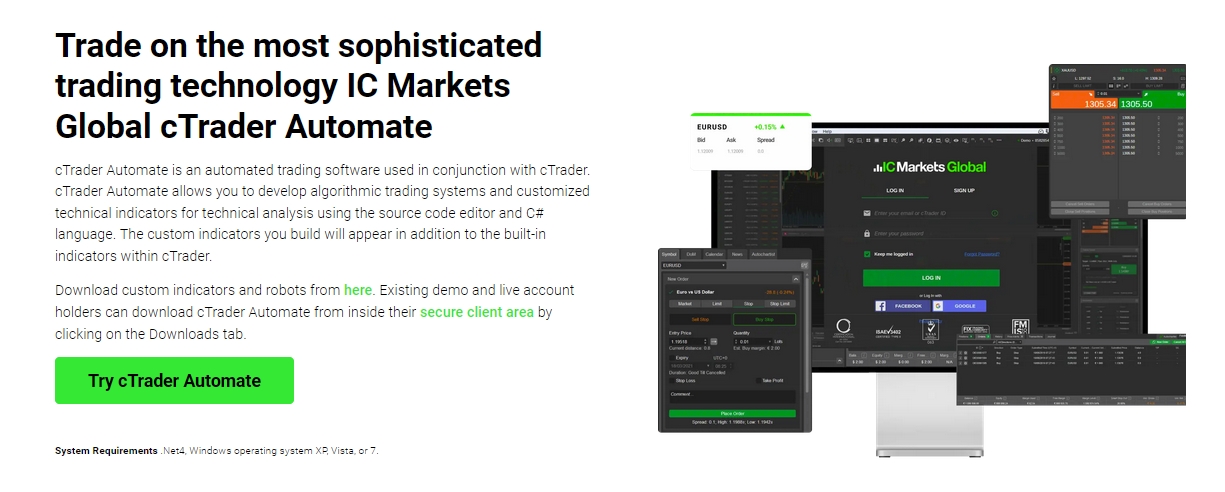
At its core, cTrader Automate lets you create two key things:
- cBots: These are fully automated trading robots. A cBot can analyze markets, open positions, manage risk, and close trades based on a pre-programmed set of rules, without any manual intervention.
- Custom Indicators: If you have a unique way of looking at market data, you can build your own technical indicators. These custom tools can then be used on your charts for manual trading or be called upon by a cBot to inform its trading decisions.
It provides a modern, code-friendly environment where your trading ideas become active market participants.
Why IC Markets is the Premier Choice for cTrader Automation
Your automated strategies are only as good as the trading environment they run in. This is where IC Markets creates an unbeatable advantage for algorithmic trading. Success in automation hinges on speed, cost, and reliability—three pillars where IC Markets excels.
“For a cBot, every millisecond and every fraction of a pip counts. The broker’s infrastructure is not just a detail; it’s a critical component of the strategy’s profitability.”
Choosing IC Markets gives your cBots a distinct edge for several key reasons:
- Raw Spreads: With spreads starting from 0.0 pips, your automated strategies have a lower cost barrier to overcome. This is especially critical for scalping or high-frequency cBots where profits are made on small price movements.
- Lightning-Fast Execution: IC Markets servers are co-located in the Equinix LD5 and NY4 data centers, placing your trades right next to major liquidity providers. This minimizes latency, reducing slippage and ensuring your cBot gets the price it expects.
- Deep Liquidity: By sourcing prices from over 25 liquidity providers, IC Markets offers exceptional order fill rates, even for large volumes. Your cBots can execute their trades reliably without causing significant market impact.
- No Restrictions: IC Markets places no limitations on trading styles. Scalping, hedging, and high-frequency strategies are all welcome, giving you complete freedom to design your cBots as you see fit.
Getting Started: Your Step-by-Step Setup Guide
Jumping into the world of algorithmic trading with IC Markets cTrader Automate is a straightforward process. We’ve broken down the essential first steps to get you from sign-up to a fully operational platform. Follow these simple guides to set up your account and install the software. You’ll be ready to launch your first cBot in no time.
Opening Your IC Markets cTrader Account
Your journey begins with creating the right account. This process is quick and secure, designed to get you into the markets as fast as possible. Here’s how to do it:
- Visit the IC Markets Website: Navigate to the account opening page.
- Fill in Your Details: Provide your personal information. Ensure it is accurate to avoid any delays in verification.
- Select Your Account Type: This is the crucial step. In the trading platform selection, be sure to choose “cTrader”. You can then select a Raw Spread or Standard account type based on your trading preferences.
- Complete Verification: Upload the required identification documents to fully activate your account.
Once your account is approved, you will receive your login credentials via email, ready for the next step.
Downloading and Installing the cTrader Platform
With your account credentials in hand, it’s time to get the platform running on your machine. The IC Markets cTrader platform contains everything you need, with the cTrader Automate feature built-in. No separate downloads are required.
- Log In to Your Client Area: Use your new credentials to access the secure IC Markets client portal.
- Find the Downloads Section: Navigate to the trading platforms tab and locate the cTrader download link.
- Download the Installer: Click the link to download the installation file for your operating system.
- Run the Installation: Open the downloaded file and follow the simple on-screen instructions. The installation is quick and typically completes in just a few minutes.
Once installed, launch cTrader and log in with your account number and password. You’re now ready to explore the platform.
Navigating the cTrader Automate User Interface
When you first open the cTrader Automate section, you’ll find a clean and powerful interface designed for efficiency. Understanding its main components is key to a smooth workflow. The layout is intuitive, especially for those with some coding experience.

Here’s a breakdown of the key areas:
| Component | Description |
|---|---|
| cBot & Indicator List | Located on the left, this panel displays all available cBots and custom indicators on your machine. This is where you will find your creations and any you have downloaded. |
| Code Editor | The large central area is a professional-grade code editor. It features syntax highlighting, autocompletion, and error checking to make writing your automated strategies a breeze. |
| Build & Log Area | Below the code editor, you’ll find tabs for “Build Result,” showing if your code compiled successfully, and “Log,” which displays messages from your running cBots for debugging. |
| API Explorer | A handy panel on the right that provides a searchable reference for the entire cTrader Automate API. It’s an invaluable tool for discovering what’s possible. |
| Backtesting & Optimization | Tabs at the bottom of a cBot’s view allow you to run historical tests and optimize its input parameters without leaving the interface. |
How to Install and Launch Your First cBot
Activating a pre-built cBot is an excellent way to get started and see automated strategies in action. The process is incredibly simple. All cTrader Automate files use the .algo file extension.
Follow these steps to get a cBot running on a chart:
- Obtain a cBot File: Download a cBot from the cTrader community or another trusted source. The file will be named something like `MyStrategy.algo`.
- Install the cBot: Simply double-click the
.algofile. cTrader will automatically launch and install it for you. Alternatively, you can place it in your computer’s `Documents/cTrader/cBots` folder. - Find it in cTrader: Open the “Automate” section in cTrader. Your newly installed cBot will appear in the list on the left.
- Create an Instance: Click on the cBot’s name. Then, look for the symbol you want to trade (e.g., EURUSD) and click the `+` icon to add an instance.
- Configure and Play: A new tab will open for the cBot instance. You can adjust its input parameters here. Once you are ready, click the “Play” button to start the cBot on your chart. Its activity will be logged in the “Log” tab.
Creating a Simple Custom Indicator from Scratch
Building your own tools is one of the most rewarding aspects of algorithmic trading. Let’s walk through the basic steps to create a simple custom indicator. This exercise will familiarize you with the code editor and the fundamental structure of an Automate script.
We’ll create an indicator that draws a 14-period Simple Moving Average (SMA) directly on the chart.
- Create a New Indicator: In the “Automate” section, click the “New” button and select “Indicator”. Give it a name, for example, “MySimpleMA”.
- Understand the Template: The code editor will open with a basic template. You’ll see two main methods: `Initialize()` which runs once at the start, and `Calculate(int index)` which runs for every new bar of data.
- Define the Output: First, tell the indicator what it will draw. At the top of the file, add this line:
[Output("Main", LineColor = Colors.Crimson)]public IndicatorDataSeries Result { get; set; } - Calculate the Moving Average: Inside the `Calculate(int index)` method, we need to access the built-in moving average function and assign its value to our output series. Add this line:
Result[index] = Indicators.SimpleMovingAverage(MarketSeries.Close, 14).Result[index]; - Build Your Indicator: Click the “Build” button. If there are no errors, a “Build Succeeded” message will appear.
That’s it! Your custom indicator is now ready. You can add it to any chart from the standard indicator list, just like any built-in one.
A Deep Dive into the cTrader Automate API
The Application Programming Interface (API) is the language you use to talk to the trading platform. The cTrader Automate API is a powerful, modern, and well-documented library that gives you granular control over every aspect of trading. It’s built on C# and the .NET framework, providing a robust and feature-rich environment for developers.
The API grants you access to a huge range of functionalities, including:
- Market Data: Access real-time and historical price data for any symbol. You can get tick, minute, or daily bars and work with bid/ask prices directly.
- Trading Functions: Programmatically create, modify, and close market orders, limit orders, and stop orders with precise control over volume, stop loss, and take profit levels.
- Account Information: Access all details about your trading account, such as balance, equity, margin, and leverage.
- Position Management: Loop through all open positions, access their properties like entry price and gross profit, and manage them individually.
- Technical Indicators: The API includes a comprehensive library of built-in technical indicators (like RSI, MACD, Bollinger Bands) that you can easily call within your cBot.
- Custom Drawings: Draw custom objects, text, and lines directly onto the chart from your cBot or indicator to create rich visual feedback.
This object-oriented API makes it easy to write clean, readable, and powerful automated strategies that go far beyond simple entry and exit rules.
Understanding the Difference: cBots vs. Indicators
In the world of cTrader Automate, it is vital to understand the distinct roles of a cBot and a custom indicator. While both are created using the same editor and language, their purpose and capabilities are fundamentally different. Confusing the two can lead to frustration. A cBot acts, while an indicator advises.
This table clearly outlines their differences:
| Feature | cBots (Automated Strategies) | Custom Indicators |
|---|---|---|
| Primary Purpose | To execute and manage trades automatically. | To perform calculations and display data visually on a chart. |
| Trade Execution | Yes. Can open, modify, and close market positions. | No. Cannot execute any trading operations. |
| How it Runs | Attached to a single chart instance and runs continuously. | Attached to a chart and recalculates on each new tick or bar. |
| Example Use Case | An automated strategy that buys when two moving averages cross over. | An indicator that colors candles based on momentum strength. |
| Key API Functions | ExecuteMarketOrder(), Positions.Find(), ClosePosition() | Indicators.*, Chart.Draw*(), MarketSeries.* |
Backtesting Your Trading Robots Like a Pro
Before you ever risk a single dollar of your capital, you must validate your cBot. Backtesting is the process of simulating your automated strategy on historical price data. It’s a critical step that allows you to see how your cBot would have performed in past market conditions. The cTrader platform offers a sophisticated backtesting engine that provides detailed insights, helping you build confidence in your strategy or identify its flaws before going live.

Sourcing and Using Accurate Historical Data
The accuracy of your backtest is entirely dependent on the quality of the historical data you use. Garbage in, garbage out. Fortunately, cTrader excels here. The platform allows you to download high-quality tick data directly from the server, which is the most granular and precise data available.
To ensure your backtest is reliable:
- Download Sufficient History: In the Backtesting tab of your cBot, you can select the date range for your test. If the data is not available locally, cTrader will prompt you to download it from the server. Always test over a long period that includes different market conditions (trending, ranging, high volatility).
- Choose the Right Data Type: For most strategies, using tick data provides the most accurate simulation, as it models price movements within each bar. This is crucial for scalping cBots that are sensitive to the bid/ask spread.
- Check for Data Gaps: Ensure the historical data for your chosen period is complete. The cTrader platform manages this well, but it’s good practice to be aware of potential gaps, especially for less common trading pairs.
Analyzing the Performance Report
After a backtest is complete, cTrader generates a comprehensive performance report. This is where you dig into the numbers to objectively evaluate your cBot’s strengths and weaknesses. Don’t just look at the final profit! A truly robust automated strategy has strong metrics across the board.
Here are key metrics to focus on:
Net Profit: The overall profit or loss. While important, it doesn’t tell the whole story.
Max Drawdown: The largest peak-to-trough decline in equity. This is a crucial measure of risk. A high drawdown indicates the strategy could suffer significant losses.
Profit Factor: The gross profit divided by the gross loss. A value greater than 1 means the strategy is profitable. Higher is generally better.
Win Rate (%): The percentage of trades that were closed with a profit. A high win rate is not always necessary if the winning trades are much larger than the losing ones.
Sharpe Ratio: A measure of risk-adjusted return. It tells you how much return you are getting for the level of risk you are taking. A higher Sharpe Ratio is desirable.
Carefully analyze these figures to understand the true character and risk profile of your automated strategies.
Optimizing cBot Parameters for Peak Performance
Most cBots are not one-size-fits-all. They have input parameters—like moving average periods or stop-loss values—that can be adjusted. Optimization is the process of systematically testing a range of these parameters to discover which combination yielded the best results over historical data. cTrader Automate has a powerful, built-in optimization tool to automate this search.
When optimizing, you instruct the platform to run hundreds or thousands of backtests, each with a different set of inputs. You can then sort the results by criteria like Net Profit, Profit Factor, or Drawdown to find the top-performing sets.
cTrader offers several optimization methods:
- Grid: An exhaustive search that tests every possible combination of parameters. It is thorough but can be very time-consuming.
- Genetic Algorithm: A smarter method that uses principles of evolution to “breed” better parameter sets over generations. It’s much faster than Grid and often finds excellent results.
- Walk-Forward: A more advanced method that breaks the data into periods, optimizing on one period and testing on the next to simulate real-world adaptation.
A word of caution: Be careful not to “over-optimize” or “curve-fit” your cBot to the historical data. A strategy that is too perfectly tuned to the past is unlikely to perform well in the live, unpredictable future market.
Leveraging IC Markets’ Raw Spreads with cTrader Automate
The synergy between your cBot and your broker’s trading conditions cannot be overstated. IC Markets’ Raw Spread environment is a game-changer for algorithmic trading. The spread—the difference between the bid and ask price—is a direct cost to your strategy. Every time your cBot opens a trade, it starts with a small loss equal to the spread.
Here’s why this matters for your automated strategies:
- Profitability for Scalpers: For cBots that aim to make many small profits (scalping), a low spread is paramount. A wide spread can completely erase the potential profit from a small market move. With spreads from 0.0 pips, IC Markets gives these cBots the best possible chance of success.
- Tighter Stop-Losses: Lower spreads allow your cBot to place stop-loss orders closer to the entry price without being stopped out by normal price fluctuations, enabling better risk management.
– Improved Backtest Accuracy: cTrader’s backtester can use historical spread data. When you test your cBot in an environment that models the tight spreads of IC Markets, your simulation results are far more realistic and representative of what you can expect in live trading.
In short, the low-cost structure at IC Markets directly translates into a higher potential profit margin for your cBots.
Common Pitfalls to Avoid in Automated Trading
Algorithmic trading is a powerful tool, but it’s not a “set it and forget it” path to riches. Many aspiring algo traders make predictable mistakes that can lead to disappointment and losses. Being aware of these common pitfalls is the first step to avoiding them.
- Curve Fitting: This is the number one mistake. It involves over-optimizing a cBot on historical data until it looks perfect. This strategy is tailored to the past and will likely fail when it encounters new market conditions. Always test your strategy on out-of-sample data it has never seen before.
- Ignoring Total Trading Costs: It’s easy to forget about commissions, swaps (overnight funding), and potential slippage. Your backtests and forward testing must account for all of these costs to provide a realistic performance picture.
- Unrealistic Expectations: No cBot wins 100% of the time. Every professional trading strategy has losing trades and periods of drawdown. Aim for realistic, consistent returns, not overnight fortunes.
- Poor Risk Management: Automating a bad idea just makes you lose money faster. Ensure your cBot has robust risk management rules, such as a fixed fractional position size and a hard stop-loss on every trade.
- Neglecting Monitoring: Even automated strategies need supervision. You must monitor your cBot’s performance, your VPS (Virtual Private Server) connection, and broker announcements to ensure everything is running as expected.
Where to Find and Download Community-Built cBots
You don’t have to write every line of code yourself. One of the greatest strengths of the cTrader platform is its active and collaborative user community. There is a vast ecosystem where traders and developers share their work, offer advice, and build upon each other’s ideas.
The primary hub for this is the official cTrader Community website. There you will find:
- A Free Codebase: A large section of the site is dedicated to users sharing hundreds of cBots and custom indicators for free. This is a fantastic place to find new ideas, learn from the code of others, and get useful tools for your trading.
- A Commercial Marketplace: For more advanced or professionally developed automated strategies, there is a marketplace where you can purchase cBots and indicators directly from their creators.
- Discussion Forums: If you have a question about coding, need help with a cBot, or want to discuss strategy ideas, the forums are an invaluable resource filled with experienced users and developers.
When downloading from the community, always review ratings, comments, and the developer’s history. And most importantly, thoroughly backtest any cBot on a demo account before ever considering it for live trading.
Transitioning from MT4 to cTrader Automate
For traders with experience in MQL4 or MQL5 on the MetaTrader platform, moving to IC Markets cTrader Automate can feel like a significant upgrade. While the core concepts of algorithmic trading are the same, cTrader Automate offers a more modern and powerful development environment built on a standard, widely-used programming language.
Here is a comparison of the key differences to help you make the switch:
| Aspect | MetaTrader 4/5 (MQL) | cTrader Automate (C#) |
|---|---|---|
| Programming Language | MQL4/MQL5 (Proprietary, C-like) | C# (Modern, object-oriented, widely used) |
| Development Environment | MetaEditor (Basic editor) | Integrated Visual Studio-like editor with advanced features |
| Backtesting Quality | Variable; often relies on interpolated data. | High-quality tick data backtesting is standard and reliable. |
| API Design | Functional, procedural style. | Modern, object-oriented API that is cleaner and more intuitive. |
| Community & Resources | Very large, but fragmented. | Smaller but highly active and centralized on the official site. |
The transition means learning C#, but the benefits include writing cleaner code, performing more accurate backtests, and working in a superior development interface.
Frequently Asked Questions
What is a cBot in cTrader Automate?
A cBot is a fully automated trading robot developed within cTrader Automate. It can analyze markets, open and close trades, and manage risk based on a pre-programmed set of rules without any manual intervention.
Why is IC Markets a good choice for automated trading with cTrader?
IC Markets is ideal for automated trading due to its Raw Spreads starting from 0.0 pips, lightning-fast execution with servers co-located in major data centers, deep liquidity from over 25 providers, and no restrictions on trading styles like scalping or high-frequency trading.
What programming language is used for cTrader Automate?
cTrader Automate uses C#, a modern and widely-used object-oriented programming language developed by Microsoft. This provides a robust environment and access to extensive learning resources.
What is the difference between a cBot and a custom indicator?
The main difference is that a cBot can execute and manage trades automatically, while a custom indicator can only perform calculations and display data visually on a chart. An indicator cannot perform any trading operations.
What is backtesting and why is it important for cBots?
Backtesting is the process of simulating your automated strategy on historical price data to see how it would have performed in the past. It is a critical step to validate a cBot, identify its flaws, and build confidence in its performance before risking real capital in live markets.