


Unlock the power of the financial markets from the palm of your hand. This guide provides everything you need for the IC Markets cTrader iOS app download. We will walk you through every step, from installation to executing your first trade. Whether you use an iPhone or an iPad, you can access one of the most powerful trading platforms available today. Forget being tied to your desk. With the cTrader iOS app, you get lightning-fast execution and advanced tools wherever you are. Join us to discover how to transform your mobile device into a professional trading station.
- What is the IC Markets cTrader Platform?
- Key Advantages of Using cTrader on Your iOS Device
- System Requirements for iPhone and iPad
- Step-by-Step IC Markets cTrader iOS App Download Guide
- Finding the App on the Apple App Store
- Installing and Launching the Application
- How to Open a Demo Account on the cTrader App
- Setting Up Your Live Trading Account
- A Tour of the cTrader iOS App Interface
- Understanding the Main Dashboard
- Navigating Watchlists and Symbols
- Executing Trades: A Practical Guide
- Placing Market, Limit, and Stop Orders
- Advanced Charting Features and Technical Analysis Tools
- How to Manage Your Open Positions and Pending Orders
- Funding Your Account: Deposits and Withdrawals via the App
- Is the IC Markets cTrader App Secure?
- Common Problems and Quick Fixes
- Tips for Maximizing Your Mobile Trading Experience
- cTrader iOS App vs. Desktop Platform: Key Differences
- Frequently Asked Questions
What is the IC Markets cTrader Platform?
The IC Markets cTrader platform is a premium trading solution designed for discerning traders. It stands apart by offering a clean, intuitive interface combined with powerful, high-speed execution. cTrader connects you directly to an ECN (Electronic Communication Network) environment. This means you get access to deep liquidity and transparent pricing directly from global banks.
Think of it as the professional’s choice. While other platforms are great for beginners, cTrader provides the advanced order types, in-depth market analysis, and level II pricing that serious traders demand. It focuses on providing a fair and direct trading experience, making it a top choice for scalpers, day traders, and algorithmic traders who partner with IC Markets.
Key Advantages of Using cTrader on Your iOS Device
Taking your trading mobile with the cTrader iPhone or iPad app gives you a significant edge. You are no longer a spectator when you are away from your main computer. You are an active participant with full control.
Here are the key benefits:
- Complete Freedom: Monitor the markets, manage your positions, and execute trades from anywhere with an internet connection. Never miss an opportunity again.
- Full-Featured Charting: Access a comprehensive suite of charting tools and technical indicators. Perform detailed analysis directly on your cTrader iPad or iPhone screen.
- Instant Execution: The app is built for speed. Experience the same rapid trade execution you expect from the desktop platform.
- Intuitive Interface: The app is designed specifically for iOS, offering a smooth and responsive user experience that feels natural on a touchscreen.
- Advanced Order Types: Go beyond simple market orders. Place limit, stop, and even stop-limit orders with advanced time-in-force settings.
- Real-Time Alerts: Set up push notifications for price alerts, order confirmations, and other critical events to stay informed 24/7.
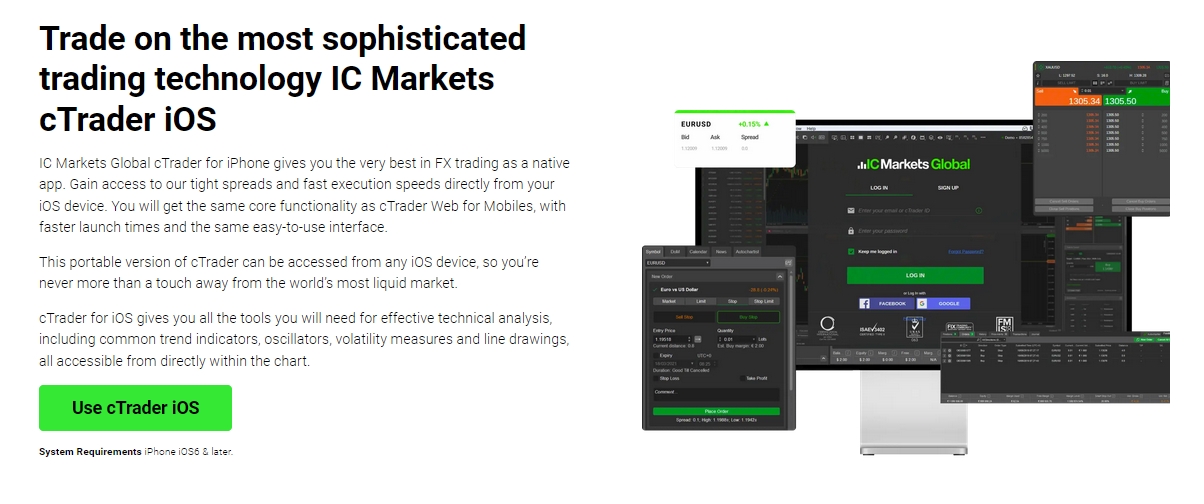
System Requirements for iPhone and iPad
To ensure a smooth and stable trading experience, your Apple device needs to meet some basic requirements. The cTrader iOS app is optimized for modern hardware but is compatible with a wide range of devices. Check the table below to see if your iPhone or iPad is ready for the download.
| Device | Minimum Required OS | Recommended OS |
|---|---|---|
| iPhone | iOS 13.0 or later | The latest version of iOS |
| iPad | iPadOS 13.0 or later | The latest version of iPadOS |
| iPod Touch | iOS 13.0 or later | The latest version of iOS |
A stable internet connection via Wi-Fi or a cellular network (4G/5G) is also essential for real-time data and trade execution.
Step-by-Step IC Markets cTrader iOS App Download Guide
Getting the official IC Markets cTrader app on your device is a quick and simple process. You can be up and running in just a few minutes. We have broken the entire process down into two easy stages. First, we will locate the correct application on the Apple App Store. Second, we will guide you through the installation and the initial launch. Follow the detailed steps below to get started.

Finding the App on the Apple App Store
The first step is to locate the official application. Using the correct app ensures you receive the best performance and security. Follow these simple instructions:
- Unlock your iPhone or iPad and navigate to your home screen.
- Find and tap on the blue “App Store” icon.
- Once the App Store is open, tap the “Search” icon, which looks like a magnifying glass, in the bottom-right corner.
- In the search bar at the top, type “IC Markets cTrader” and press search.
- The official app should appear at the top of the results. Verify it is the correct one by looking for the official cTrader and IC Markets branding.
Installing and Launching the Application
Once you have found the app, installing it is just a few taps away. The process is the same as for any other iOS application.
- Next to the IC Markets cTrader app name, tap the “Get” button. If you have downloaded it before, you will see a small cloud icon with an arrow instead.
- Your device will ask you to confirm the download. You may need to use Face ID, Touch ID, or enter your Apple ID password.
- The app will begin to download and install. You can monitor its progress on your home screen.
- When the installation is complete, the app icon will appear on your home screen. Tap it to launch the IC Markets cTrader app for the first time.
How to Open a Demo Account on the cTrader App
A demo account is the perfect way to explore the platform without any risk. You can practice your trading strategies, get familiar with the interface, and test the app’s features using virtual funds. Setting one up directly within the app is easy.
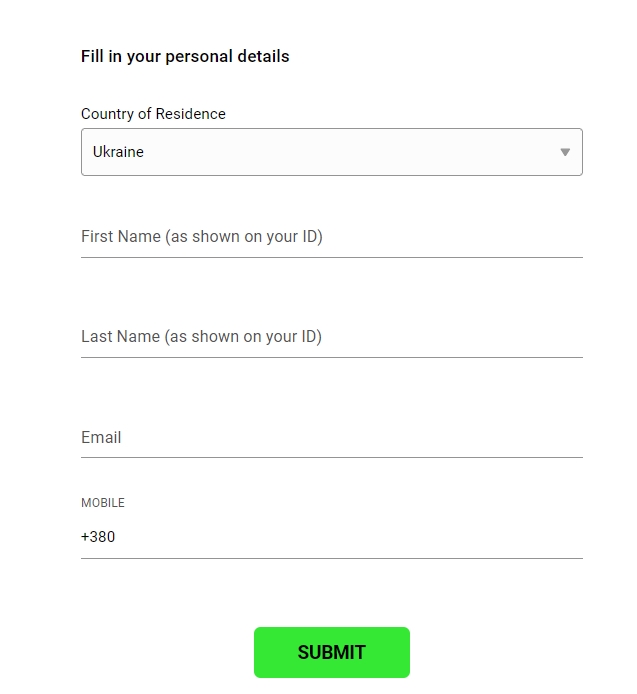
- When you first open the app, you will see the login screen. Look for a link or button that says “Open a Demo Account” or “Register”.
- Tap this option to begin the registration process.
- You will be asked to provide some basic information, typically your email address, name, and country of residence.
- Next, configure your demo account. You can choose the account currency (e.g., USD, EUR), the starting virtual balance, and the desired leverage level.
- Once you confirm, your demo account is created instantly. The app will log you in automatically, and you can start exploring the markets and placing practice trades immediately.
Setting Up Your Live Trading Account
To trade with real funds, you need to connect the cTrader iOS app to your live IC Markets account. The app itself is your portal to the market, but the account is managed through IC Markets.
If you do not have a live account, you must first register on the IC Markets website. This process includes identity verification and is a standard regulatory requirement. Once your live account is approved and funded, IC Markets will provide you with your login credentials, which include a cTrader ID (cTID) and a password.
Your cTID is your key to the entire cTrader ecosystem. Keep it safe and use it to log in on any device, including your iPhone or iPad.
To log in on the app:
- Open the IC Markets cTrader app.
- On the main screen, choose the option to “Login”.
- Carefully enter your cTID or email and your password.
- Ensure you select the correct server environment (Live).
- Tap “Login,” and the app will securely connect to your live trading account, loading your balance, positions, and settings.
A Tour of the cTrader iOS App Interface
The IC Markets cTrader app for iPhone and iPad features a clean, modern, and highly intuitive design. The layout is optimized for touch interaction, ensuring you can navigate quickly and efficiently. Key functions are organized into a main tab bar at the bottom of the screen, providing one-tap access to your most important tools. This thoughtful design means less time searching through menus and more time focusing on the markets.
Understanding the Main Dashboard
When you log in, the main dashboard gives you an instant snapshot of your trading account. It is designed for a quick overview, presenting the most vital information at a glance. Key elements include:
- Account Status: At the top, you will see your most important metrics: Balance, Equity, Margin, Free Margin, and current Profit/Loss (P/L).
- Positions: A summary list of your currently open trades. You can see the symbol, volume, and running P/L for each position.
- Orders: A list of your pending orders, such as Limit and Stop orders that have not yet been executed.
- Main Navigation: A tab bar at the bottom provides access to different sections like Watchlists, Charts, and Trade History.
Navigating Watchlists and Symbols
Watchlists are your personal collections of trading instruments. The cTrader app allows you to create and customize multiple watchlists to organize the markets you follow. To manage them:
- Find Symbols: Tap the “+” or “Add Symbol” button within a watchlist. This opens a search screen where you can browse instruments by category (e.g., Forex, Metals, Indices) or search for a specific symbol by name (e.g., “EURUSD”).
- Add to Watchlist: Simply tap on a symbol from the search results to add it to your active watchlist.
- Organize Your List: Most versions of the app allow you to reorder symbols by tapping and holding, then dragging them into your preferred position.
- Switch Watchlists: You can create different lists for different strategies, such as “Major Forex Pairs” or “Volatile Indices,” and switch between them easily.
Executing Trades: A Practical Guide
Placing a trade on the IC Markets cTrader iOS app is designed to be fast, simple, and precise. You can initiate a trade from multiple locations, including your watchlists or directly from a full-screen chart. The platform provides a range of order types, giving you complete control over how you enter and exit the market. Whether you need immediate execution or want to set a specific entry point for the future, the app has you covered.
Placing Market, Limit, and Stop Orders
Understanding different order types is crucial for effective trading. The cTrader iPhone app gives you access to the same powerful options as the desktop platform.
- Market Order: This is the simplest order type. It instructs the broker to buy or sell an instrument immediately at the next available price. To place one, simply tap on a symbol, select the volume (lot size), and tap “Buy” or “Sell.”
- Limit Order: This allows you to set a specific price at which you wish to buy or sell. A Buy Limit is placed below the current price, and a Sell Limit is placed above. The order will only execute if the market reaches your specified price.
- Stop Order: This is an order to buy or sell once the price reaches a certain point. A Buy Stop is placed above the current price, and a Sell Stop is placed below. These are often used to trade breakouts or to act as a Stop Loss to protect a position.
When creating any order, you can also set Stop Loss (SL) and Take Profit (TP) levels to manage your risk and lock in profits automatically.
Advanced Charting Features and Technical Analysis Tools
The cTrader iOS app is not just for placing trades; it is a powerful analysis tool in your pocket. You can perform in-depth technical analysis directly from your iPhone or cTrader iPad, with features that rival many desktop platforms.
- Multiple Timeframes: Switch seamlessly between timeframes, from tick charts and one-minute (M1) charts for scalping up to monthly (MN) charts for long-term trend analysis.
- Rich Indicator Library: Add dozens of popular technical indicators to your charts. This includes Moving Averages, RSI, MACD, Bollinger Bands, Stochastic Oscillator, and many more. You can also customize their parameters.
- Drawing Tools: Analyze price action by drawing trend lines, channels, support and resistance levels, and Fibonacci retracements. The touch interface makes drawing directly on the chart intuitive and easy.
- Varied Chart Types: Choose the chart display that best suits your style, including traditional Candlesticks, OHLC Bars, and simple Line charts.
- Zoom and Pan: Effortlessly navigate through historical data using standard pinch-to-zoom and swipe-to-pan gestures.
How to Manage Your Open Positions and Pending Orders
Effective trade management is just as important as a good entry. The IC Markets cTrader app provides a centralized and clear interface for managing all your trading activity.
All of your live trades and pending orders are neatly organized in the “Positions” and “Orders” tabs. From this control center, you can take several actions:
For Open Positions:
- Monitor Performance: See the real-time profit or loss for each trade.
- Modify Protection: Tap on a position to adjust its Stop Loss or Take Profit levels on the fly.
- Close Trades: Close an entire position with a single tap. Many versions also allow for partial closes, letting you scale out of a winning trade.
- View Details: Access detailed information about a trade, including the open price, commission, and swap fees.
For Pending Orders:
- Adjust Entry Points: If market conditions change, you can easily modify the entry price of your Limit or Stop orders.
- Cancel Orders: If your trade setup becomes invalid, you can cancel a pending order instantly before it gets triggered.
Funding Your Account: Deposits and Withdrawals via the App
Managing your funds is a secure and streamlined process within the cTrader iOS app. You can easily deposit funds to your trading account or request a withdrawal without needing to access a desktop computer.
The app integrates directly with the IC Markets secure client portal. Here is how it typically works:
- Navigate to the funding section within the app, often labeled “Deposit” or “Funds”.
- Tapping this option will open a secure in-app window connected to your IC Markets account.
- For deposits, you can select from a wide range of available payment methods, such as credit/debit cards, bank wire transfers, and popular online payment wallets.
- For withdrawals, you can submit a request directly through the same portal. The funds will be returned to the source you used for your deposit, in line with anti-money laundering regulations.
All financial transactions are protected with high-grade encryption to ensure your data and funds remain safe at all times.
Is the IC Markets cTrader App Secure?
Absolutely. Security is a top priority for both IC Markets and the developers of the cTrader platform. The cTrader iOS app is built with multiple layers of protection to ensure that your account, personal data, and funds are always safe.
- Native iOS Architecture: The app is a native application, not a web-based wrapper. This allows it to leverage the robust, built-in security features of Apple’s iOS operating system.
- End-to-End Encryption: All communication between your cTrader iPhone app and the trading servers is encrypted using advanced protocols. This prevents unauthorized parties from intercepting your trade data or account information.
- Secure Authentication: Access to your account is protected by your unique cTrader ID (cTID) and a confidential password.
- Broker-Level Security: IC Markets is a regulated broker that adheres to strict financial standards. This includes holding client funds in segregated bank accounts, completely separate from the company’s operational funds.
You can trade with confidence, knowing that industry-best practices are in place to protect you.
Common Problems and Quick Fixes
Even the best apps can sometimes present issues. Fortunately, most common problems with the cTrader iOS app are easy to solve. Here are a few scenarios and their quick fixes.
| Problem | Quick Fixes |
|---|---|
| Connection Issues / “Connecting…” | First, check your internet connection (switch between Wi-Fi and cellular). Second, completely close the app and reopen it. Finally, ensure you have the latest version of the app from the App Store. |
| Incorrect Password / Login Failed | Carefully re-type your credentials, paying attention to case sensitivity. Ensure you have selected the correct server (e.g., IC Markets-Live or IC Markets-Demo). Use the “Forgot Password” link if you are unsure. |
| Charts Are Slow or Not Updating | This is often due to a weak internet signal. If your connection is strong, try restarting the app. Sometimes, reducing the number of indicators on a chart can improve performance on older devices. |
| Cannot Find a Trading Symbol | Go to the “Find Symbol” search bar and type the symbol’s ticker (e.g., ‘GBPUSD’). Make sure you are looking in the correct asset class. If you still can’t find it, it may not be offered by the broker. |
Tips for Maximizing Your Mobile Trading Experience
Transform your cTrader iOS app from a simple monitoring tool into a powerful trading command center. Follow these tips to get the most out of your mobile trading.
- Set Up Price Alerts: Don’t stay glued to your screen. Use the app’s alert feature to get a push notification when an instrument reaches a key price level. This frees you up while ensuring you don’t miss an entry or exit point.
- Customize Your Charts: Save your favorite chart layouts, including indicators and color schemes, as templates. This allows you to apply your preferred analysis setup to any instrument with a single tap.
- Master QuickTrade Mode: For scalpers and fast-moving markets, cTrader’s QuickTrade settings allow for one-tap or double-tap order execution. Practice with it on a demo account first to understand its speed and avoid mistakes.
- Organize with Watchlists: Create multiple watchlists for different purposes. You could have one for major forex pairs, another for commodities, and a third for instruments you are actively trading. This keeps your interface clean and focused.
- Use the iPad’s Screen Real Estate: If you are using a cTrader iPad, take advantage of the larger screen. Open charts in full-screen mode for a much more detailed view of price action, making your analysis clearer and more effective.
cTrader iOS App vs. Desktop Platform: Key Differences
The cTrader iOS app and the desktop platform are two parts of the same powerful ecosystem, each with its own strengths. They are designed to be complementary, not identical. Understanding their key differences helps you use the right tool for the right job.
| Feature | cTrader iOS App | cTrader Desktop Platform |
|---|---|---|
| Primary Use Case | Trading on the go, managing positions, quick analysis | In-depth analysis, complex charting, automated trading |
| Workspace | Single chart view | Multiple charts, detachable windows, multi-monitor support |
| Algorithmic Trading | Not available | Full support for cBots and custom indicators (C#) |
| Advanced Charting | Excellent core features and indicators | Expanded toolsets, custom indicators, more drawing objects |
| Portability | Maximum | None |
Use the desktop platform for your deep research and strategy development. Use the cTrader iPhone app to manage those trades and seize new opportunities when you are away from your desk. Together, they provide a complete and seamless trading experience.
Frequently Asked Questions
What is the IC Markets cTrader iOS app?
The IC Markets cTrader iOS app is a powerful mobile trading platform for iPhone and iPad. It provides direct access to an ECN trading environment, offering high-speed execution, deep liquidity, advanced charting tools, and a full range of order types for trading on the go.
Is the cTrader app free to download and use?
Yes, the IC Markets cTrader app is free to download from the Apple App Store. You can also open a demo account with virtual funds to practice trading at no cost. Live trading requires a funded account with IC Markets.
What are the system requirements for the cTrader app on an iPhone or iPad?
To run the app, your iPhone or iPod Touch needs iOS 13.0 or later, and your iPad requires iPadOS 13.0 or later. It is always recommended to use the latest version of the operating system for the best performance and security.
Can I perform technical analysis on the cTrader mobile app?
Absolutely. The cTrader iOS app includes a comprehensive suite of advanced charting features. You can access multiple timeframes, apply dozens of technical indicators, use various drawing tools like trend lines and Fibonacci retracements, and switch between different chart types.
How do I deposit or withdraw funds using the app?
The app securely integrates with the IC Markets client portal. You can navigate to the funding section within the app to deposit funds using methods like credit/debit cards or online wallets. Withdrawal requests can also be submitted directly through the same secure in-app portal.