


Welcome, Mac users! You have a powerful machine, and you deserve a powerful trading platform to match. The IC Markets MetaTrader Mac app puts a world of financial opportunity right on your desktop, eliminating the need for complex workarounds or unstable solutions. This guide provides everything you need for a smooth download, installation, and setup process, walking you through every step. You will learn how to choose the right platform, install it securely on your macOS system, and configure it for your first trade. Get ready to unlock the full potential of your Mac for trading.
- Why Choose IC Markets for Trading on Your Mac?
- MetaTrader 4 vs. MetaTrader 5: Which is Right for Your Mac?
- Step-by-Step Guide: IC Markets MetaTrader Mac App Download
- Finding the Official Download Link
- Downloading the MT4 Mac Application
- Downloading the MT5 Mac Application
- How to Install IC Markets MetaTrader on macOS
- Bypassing the “Unidentified Developer” Security Warning
- First Time Setup: Logging In to Your IC Markets Account
- Is There a Native IC Markets MetaTrader App for Mac?
- Navigating the IC Markets MetaTrader Interface on Mac
- How to Install Custom Indicators and Expert Advisors (EAs) on Mac
- Troubleshooting Common IC Markets Mac App Issues
- Solving Connection and Login Problems
- Fixing Lag or Slow Performance
- Key Features and Benefits for Mac Traders
- System Requirements for Optimal Performance on Mac
- Alternatives: IC Markets cTrader and WebTrader for Mac Users
- How to Keep Your MetaTrader App Updated on macOS
- Is Trading on the Mac App Secure with IC Markets?
- Frequently Asked Questions
Why Choose IC Markets for Trading on Your Mac?
Pairing your Mac with IC Markets creates a formidable trading setup. We build our service around speed, reliability, and giving you an edge. Here is why Mac traders consistently choose us:
This approach ensures you get the full, uncompromised MetaTrader experience. Every feature, indicator, and expert advisor that works on the Windows version is available to you on your Mac. It is the best of both worlds: the power of MetaTrader and the elegance of macOS.
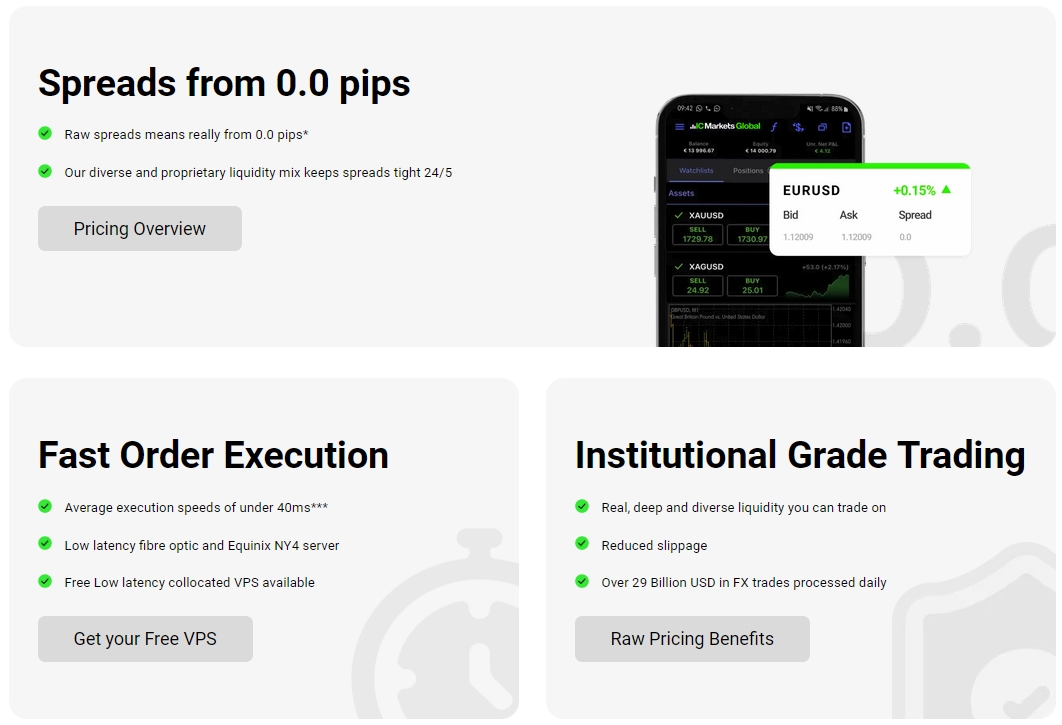
- Raw Spreads: We connect you directly to our liquidity providers. This means you get some of the tightest spreads in the market, starting from 0.0 pips.
- Lightning-Fast Execution: Our servers are co-located in major financial data centers. This ensures ultra-low latency and swift order execution, critical for fast-moving markets.
- Unmatched Instrument Range: Trade Forex, Indices, Commodities, Stocks, and more from a single platform. Diversify your portfolio without ever leaving the app.
- A Stable and Reliable Platform: The mt mac app we provide is optimized for macOS. It delivers the stability and performance you expect from your Apple device.
- Dedicated Support: Our global support team is ready to assist you. We understand the needs of traders and provide expert help when you need it.
MetaTrader 4 vs. MetaTrader 5: Which is Right for Your Mac?
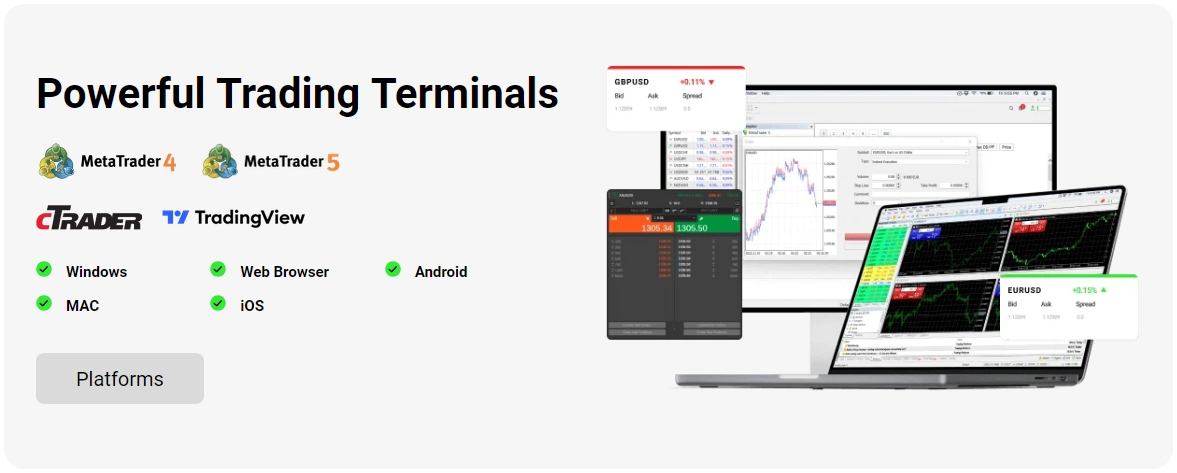
Both MetaTrader 4 (MT4) and MetaTrader 5 (MT5) are exceptional platforms, but they cater to slightly different needs. Choosing the right one depends on your trading style. Use this table to decide which mt mac app is your perfect fit.
| Feature | MetaTrader 4 (MT4) | MetaTrader 5 (MT5) |
|---|---|---|
| Best For | Forex traders and those who value simplicity and a vast library of existing EAs. | Traders who want access to more markets like stocks and need advanced analytical tools. |
| Technical Indicators | 30 built-in indicators. | 38 built-in indicators. |
| Timeframes | 9 standard timeframes. | 21 timeframes, including M2, M3, H2, H6, etc. |
| Order Types | 4 order types (Buy/Sell Stop, Buy/Sell Limit). | 6 order types, including Buy/Sell Stop Limit. |
| Economic Calendar | Not available natively. | Integrated directly into the platform. |
Step-by-Step Guide: IC Markets MetaTrader Mac App Download
Getting the world’s most popular trading platform onto your Mac is straightforward. We have broken down the entire IC Markets MetaTrader Mac app download process into simple, manageable steps. We will guide you from finding the correct file on our official website to preparing it for installation. Just follow along, and you will be ready to go in minutes.

Finding the Official Download Link
Your security is paramount. To ensure you get the genuine and secure version of the mt mac app, always download it directly from the official IC Markets website. Avoid third-party websites that claim to offer the software, as these can be outdated or contain malware. Navigate to the “Trading Tools” or “Platforms” section of our website to find the dedicated Mac download page.
Downloading the MT4 Mac Application
If you have decided that MT4 is the platform for you, follow these simple steps to download it:
- Navigate to the official IC Markets trading platforms page.
- Select the MetaTrader 4 platform.
- Look for the download button clearly labeled for Mac or macOS.
- Click the button. Your browser will begin downloading the “ICMarkets-MT4.dmg” file.
Downloading the MT5 Mac Application
Ready to leverage the advanced features of MT5 on your macOS device? The download process is just as easy:
- Go to the trading platforms section on the official IC Markets website.
- Choose the MetaTrader 5 platform.
- Find and click the download link specifically for Mac users.
- The “ICMarkets-MT5.dmg” file will start downloading to your computer.
How to Install IC Markets MetaTrader on macOS
Once you have completed the IC Markets MetaTrader Mac app download, installation is a breeze. The process is the same for both MT4 and MT5. It follows the standard procedure for most Mac applications.
- Locate the File: Open your “Downloads” folder and find the .dmg file you just downloaded.
- Open the Installer: Double-click the .dmg file. A new window will appear on your screen.
- Drag to Applications: In this new window, you will see the MetaTrader icon and a shortcut to your Applications folder. Simply click and drag the MetaTrader icon onto the Applications folder icon.
- Complete the Installation: macOS will copy the application to your main Applications folder. Once the progress bar is complete, the installation is finished! You can now eject the installer from your desktop.
Bypassing the “Unidentified Developer” Security Warning
macOS has a security feature called Gatekeeper that can sometimes prevent apps from non-App Store sources from opening. If you see a warning about an “unidentified developer,” do not worry. This is easy to resolve.
- Do not try to open the app again immediately. First, go to System Settings.
- Click on Privacy & Security in the sidebar.
- Scroll down until you see a message under the “Security” section that says the MetaTrader app was blocked.
- Click the “Open Anyway” button next to this message. You will be asked to confirm, and then the app will open successfully. You only need to do this once.
First Time Setup: Logging In to Your IC Markets Account
With the platform installed, it is time to connect to your trading account. The first launch will often prompt you to log in, but if not, the process is simple.
- Launch the MetaTrader application from your Applications folder.
- The platform will automatically scan for servers. A window will appear with a list.
- Select the correct server for your account type (e.g., IC Markets – Live 01, IC Markets – Demo 02). You can find this in your welcome email.
- Select “Existing trade account.”
- Enter your account number in the “Login” field and your account password.
- Click “Finish.” You will hear a confirmation chime, and the connection status in the bottom-right corner will turn green. You are now connected!
Is There a Native IC Markets MetaTrader App for Mac?
This is a great question. The versions of MetaTrader 4 and 5 for Mac are not built from the ground up as native macOS apps. Instead, they are the popular Windows versions expertly packaged within a compatibility layer called Wine. This is a common and highly effective method used by many developers.
This approach ensures you get the full, uncompromised MetaTrader experience. Every feature, indicator, and expert advisor that works on the Windows version is available to you on your Mac. It is the best of both worlds: the power of MetaTrader and the elegance of macOS.
Navigating the IC Markets MetaTrader Interface on Mac
The MetaTrader interface is powerful and packed with information. Understanding the main windows is key to efficient trading. Here is a quick tour of the primary sections you will use every day in your mt mac app.
- Market Watch
- Located on the left, this window displays a list of financial instruments and their live bid/ask prices. You can right-click here to open new charts or place trades.
- Navigator
- Found just below the Market Watch, the Navigator is your hub for managing accounts, and accessing your library of indicators, Expert Advisors (EAs), and scripts.
- Chart Window
- This is the largest section and the heart of the platform. Your charts are displayed here, where you will conduct your technical analysis and visualize market movements.
- Terminal
- This multi-tabbed window at the bottom of the screen is your command center. It shows your open trades, account history, news alerts, logs, and more.
How to Install Custom Indicators and Expert Advisors (EAs) on Mac
One of the greatest strengths of MetaTrader is its customizability. Adding custom indicators or EAs to your Mac app requires a few specific steps to locate the correct folder.
- With MetaTrader open, click on “File” in the top menu bar (next to the Apple logo).
- In the dropdown menu, select “Open Data Folder.” This will open a new Finder window.
- In this window, navigate into the “MQL4” (for MT4) or “MQL5” (for MT5) folder.
- Inside, you will find folders named “Indicators” and “Experts.”
- Copy your custom indicator file (e.g., .ex4 or .mq4) and paste it into the “Indicators” folder. Do the same for EAs in the “Experts” folder.
- Close and restart the MetaTrader application.
- Your new custom tool will now appear in the “Navigator” window, ready to be dragged onto a chart.
Troubleshooting Common IC Markets Mac App Issues
While the MetaTrader app for Mac is very stable, you might occasionally encounter a minor issue. Most common problems are related to connection or performance and can be resolved quickly with a few simple checks. Before diving into specifics, always ensure your macOS and the MetaTrader app are updated to their latest versions.
Solving Connection and Login Problems
If your platform shows “No connection” or “Invalid account,” do not panic. Run through this checklist to diagnose and solve the issue.
- Double-Check Credentials: Carefully re-enter your Login ID, password, and server name. A simple typo is the most common cause. Your password is case-sensitive.
- Rescan Servers: Click on the connection status bar in the bottom-right corner of the platform. A menu will pop up; click “Rescan servers.” This refreshes the connection list.
- Confirm the Correct Server: IC Markets has multiple live and demo servers. Ensure you are selecting the exact one assigned to your account in your welcome email.
- Check Your Internet: Make sure your Mac has a stable internet connection by trying to visit a website in your browser.
Fixing Lag or Slow Performance
A responsive platform is crucial for trading. If your mt mac app feels sluggish, you can take several steps to improve its performance.
- Reduce Chart Data: In the top menu, go to Tools > Options and select the “Charts” tab. Lower the number in the “Max bars in chart” field. This reduces the amount of data the platform needs to process.
- Close Unused Charts: Each open chart consumes system resources. Close any charts for instruments you are not actively monitoring.
- Remove Heavy Indicators: Some complex custom indicators can slow down the platform. Try removing them one by one to see if performance improves.
- Restart the Application: A simple restart can often clear up temporary memory issues and restore speed.
Key Features and Benefits for Mac Traders
The IC Markets MetaTrader app for Mac is not a limited version. It is a full-featured trading terminal that brings professional-grade tools to your macOS desktop.
- Full Technical Analysis Suite: Access dozens of pre-installed indicators and graphical objects. Draw trend lines, use Fibonacci tools, and identify patterns with ease.
- One-Click Trading: Execute trades with a single click directly from the chart. This feature is essential for scalpers and traders who need to act fast.
- Automated Trading Support: Unleash the power of Expert Advisors (EAs). Run your automated trading strategies 24/7, just as you would on any other system.
- Customizable Workspace: Save chart templates, create profiles, and arrange windows to create a trading environment that perfectly suits your workflow.
- Real-Time Streaming Quotes: Get reliable, live price feeds in the Market Watch window for all available instruments.
System Requirements for Optimal Performance on Mac
The IC Markets MetaTrader application is designed to be efficient and run smoothly on a wide range of Mac computers. However, to ensure the best possible trading experience, we recommend your system meets the following specifications.
| Component | Recommended Specification |
|---|---|
| Operating System | macOS Mojave or a more recent version |
| Processor (CPU) | Intel Core i5 or Apple M1 chip (or better) |
| Memory (RAM) | 8 GB or more |
| Free Storage | At least 1 GB of available space |
| Internet Connection | A stable, low-latency broadband connection |
Alternatives: IC Markets cTrader and WebTrader for Mac Users
While MetaTrader is an excellent choice, we believe in providing options. If you are looking for an alternative or simply want a no-download solution, IC Markets has you covered.
IC Markets cTrader Web: This platform is perfect for traders who appreciate a sleek, modern interface. cTrader is known for its advanced order capabilities and stunning design. It runs directly in your Safari, Chrome, or Firefox browser, requiring no installation. It is a powerful and user-friendly alternative for Mac users.
IC Markets WebTrader: Based on the familiar MetaTrader interface, the WebTrader platform provides a seamless transition for those used to the desktop app. It offers robust charting and trading functionality directly from your browser. It is the ideal solution for quick account access from any Mac without needing to install software.
How to Keep Your MetaTrader App Updated on macOS
Keeping your trading platform up-to-date is vital for security, stability, and access to new features. The MetaTrader platform makes this process incredibly simple. Most of the time, the application will update itself automatically. When you launch the app, it will check for a new version. If one is available, it will prompt you to install it.
We strongly recommend you always accept these updates. If for some reason you miss a prompt or want to ensure you have the latest version, you can always revisit the IC Markets website and re-download the installer. Running the latest installer will safely update your existing application without affecting your settings or account information.
Is Trading on the Mac App Secure with IC Markets?
Absolutely. Your security is our highest priority. We implement multiple layers of protection to ensure your trading activity and personal data remain safe.
All data transmitted between your mt mac app and our trading servers is encrypted with 128-bit keys. This powerful encryption shields your login credentials, trade details, and account information from unauthorized access. Furthermore, by providing the download directly from our website, we ensure you receive a clean, authentic, and untampered version of the software. You can trade with confidence, knowing your connection is secure and your platform is genuine.
Frequently Asked Questions
Is the IC Markets MetaTrader app a native macOS application?
The MetaTrader app for Mac is the Windows version expertly packaged within a compatibility layer called Wine. This ensures you get the full, uncompromised MetaTrader experience with all features, indicators, and expert advisors that work on the Windows version.
How do I install custom indicators or Expert Advisors (EAs) on the Mac app?
From the MetaTrader app, click “File” > “Open Data Folder.” Navigate to the “MQL4” (for MT4) or “MQL5” (for MT5) folder, and then place your custom files into the “Indicators” or “Experts” subfolders. Restart the application to see them in the Navigator window.
What should I do if I see an “unidentified developer” warning during installation?
This is a standard macOS security feature. To bypass it, go to System Settings > Privacy & Security. Scroll down to the security section where you’ll find a message about the blocked app and a button to “Open Anyway.” You only need to do this once.
What is the difference between MetaTrader 4 and MetaTrader 5 on Mac?
MT4 is ideal for Forex traders who value simplicity and a large library of existing EAs. MT5 is better for traders who need access to more markets like stocks, and it offers more technical indicators, timeframes, and advanced order types.
Are there browser-based alternatives for Mac users?
Yes, IC Markets offers cTrader Web, known for its modern interface and advanced order capabilities, and WebTrader, which provides a familiar MetaTrader-like experience. Both run directly in your browser with no installation required.